<body><script type="text/javascript"> function setAttributeOnload(object, attribute, val) { if(window.addEventListener) { window.addEventListener('load', function(){ object[attribute] = val; }, false); } else { window.attachEvent('onload', function(){ object[attribute] = val; }); } } </script> <div id="navbar-iframe-container"></div> <script type="text/javascript" src="https://apis.google.com/js/platform.js"></script> <script type="text/javascript"> gapi.load("gapi.iframes:gapi.iframes.style.bubble", function() { if (gapi.iframes && gapi.iframes.getContext) { gapi.iframes.getContext().openChild({ url: 'https://www.blogger.com/navbar/25388941?origin\x3dhttps://wildthoughtsfaq.blogspot.com', where: document.getElementById("navbar-iframe-container"), id: "navbar-iframe" }); } }); </script>
MWave 468x60

Lakaw is a journey is a step is a move. I love to travel around the world and this is my travel and travel gadget site. Welcome and Enjoy!

0 comments | Friday, August 20, 2010

Have you tried the RockPlayer video player app for your Android phone? RockPlayer recently launched a video player that supports a wide range of formats including MKV, Xvid, WMV, and DiVX.

The good thing is, RockPlayer is free for download. I already downloaded and tried it on my Droid X and plays videos perfectly. There is also a paid version, which has no advertisements.

Search RockPlayer on your Android phone and download it!

Labels: ,

Continue Reading >>>

0 comments | Thursday, August 19, 2010

The moment I added my Gmail account on my Droid X, I constantly received notifications of new emails. At first it was cool. But it got very annoying when, in the middle of the night, the notification sound just kept on buzzing. I have a very busy inbox, and being notified every now and then may not be the best thing to do. So I looked for ways to turn off email notification on my Droid X.

There was really no solution in disabling the email notification without turning off the Gmail account itself. I was hoping for something like receiving the emails yet without being notified. So far, there is nothing I found online.

The best solution to stop the Droid X notifications, is to "uncheck" the Gmail account. To do that:

1. Tap the "settings" button.

2. Then scroll down and tap "accounts." Here you will find the different accounts you have set -- like Facebook, Twitter, Gmail, Yahoo...etc.

3. Select and tap the "Google" or "Gmail" account.

4. Now you are in the Data and Synchronization screen. Uncheck the "Synch Gmail", but leave the "Synch Contacts" checked.

That's it. Exit the screen and your Droid X will not be getting the email notifications anymore. If you wanna check your gmails again, just follow the same steps, but this time, check the the "Synch Gmail" to activate it.

Note: If any of you have other solutions, please leave it in the comment section. Thanks.

Labels:

Continue Reading >>>

0 comments | Thursday, July 29, 2010

Motorola is giving tips on how to increase or extend the battery life of the Droid X phone. There is what they call training the new battery to improve its life! How?

* Turn off Motorola Droid X and fully charge the battery until the LED stops flashing and remains on.
* Charge the battery for an additional TWO hours.
* Completely drain the battery
* Repeat the process once again

Other ways to help increase the life of the battery is to turn off or kill unused apps. There are free apps killer available in the Droid "market" (use the "market" button to find them.) One killer app you may want to check out is the "Taskiller". Use this to reduce the number of apps running in the background.

Switch off Bluetooth, Wi-Fi connectivity, and GPS when not in use. All these application consume battery power.

Next, reduce the display brightness of the screen. Like any other phone, the brighter the display, the more power is consumed. How to access the brightness menu? Touch and hold a blank part of the Home Screen, then tap Droid Widgets. Look for the Power Control. Then adjust the brightness of the screen.

If you have questions, leave me a comment.

Also see: How to Edit Contacts on Droid X Phone.

Labels: ,

Continue Reading >>>

0 comments | Saturday, July 24, 2010

I have been tinkering on my new Motorola Droid X. So far I have been overwhelmed by its features that there are times I get lost on its basic functions -- like for instance, editing the list of contacts. The buttons are hidden on the touch screen, and most of the time, you need to know where you have to press correctly.

Verizon Wireless has the details on how to edit the contacts of the Motorola Droid X.

1. Touch a contact.
Note: To change contact groups, press the Menu button, touch Display group then touch the appropriate group (e.g. All contacts, Facebook, Google, etc.).
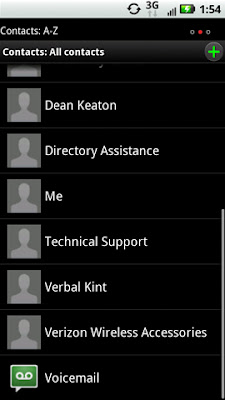

2. Press the Menu button.
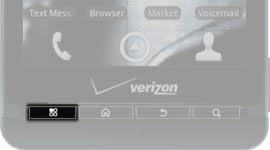

3. Touch Edit.
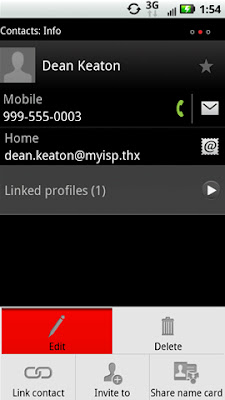

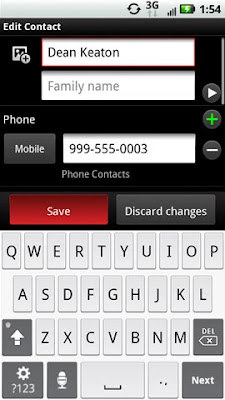
4. Edit any of the following information then touch Save.
Note: To view additional options or to add an entry, touch the triangle or plus (+) symbol located to the right of the option.

* Given name
* Family name
* Phone
* Emails
* IM
* Addresses
* Organizations
* Additional info

That's it. Please leave comments if you still have problems.

Labels: ,

Continue Reading >>>

Related Posts with Thumbnails